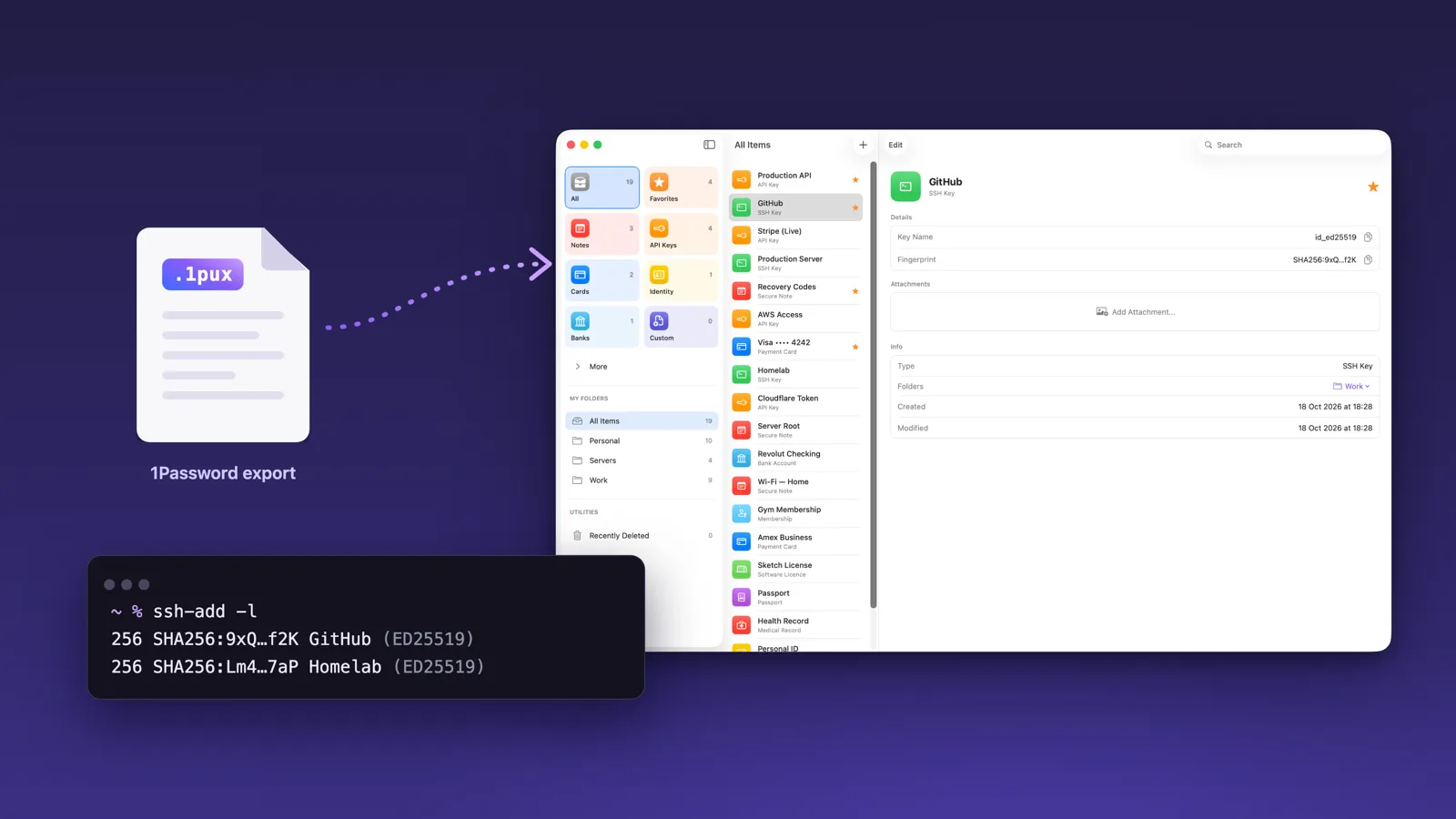
If everything you own is made by Apple, you can drop 1Password and use two apps instead. Apple Passwords handles logins, passkeys and verification codes, and it’s free. Fydra takes the rest: secure notes, payment cards, passports, API keys and SSH keys, plus a Touch ID SSH agent on the Mac. It reads your 1Password export directly and costs €19.99 a year or €59.99 once. 1Password Individual is now €43.80 a year.
A disclaimer up front: I make Fydra. I’ve tried to be fair to 1Password below, including a section on who should keep it. The rest of the article covers what each app does, what moves over and what doesn’t, and the exact steps to switch, SSH keys and Git signing included.
The 1Password price increase in 2026
On March 27, 2026, 1Password raised its prices for the first time in ten years. According to MacRumors:
| Plan | Before | Since March 27, 2026 |
|---|---|---|
| Individual (US) | $2.99/month, $35.88/year | $3.99/month, $47.88/year |
| Families (US) | $4.99/month, $59.88/year | $5.99/month, $71.88/year |
| Individual (eurozone) | €31.80/year | €43.80/year |
| Families (eurozone) | €57/year | €69/year |
That’s 33% more for an Individual plan in the US and almost 38% in the eurozone (iphone-ticker.de). The new price applies at your first renewal after March 27. In parts of Europe, 1Password cancels the plan unless you approve the increase, so you have to make a decision either way.
To be fair to 1Password, it’s a good product, and the increase roughly matches a decade of inflation, as TidBITS points out. What matters is whether you use the parts that justify $48 a year. On Apple devices, much of it now ships with the system.
What Apple Passwords already does well
Since iOS 18 and macOS 15, Apple Passwords is a full app, not a settings screen. It covers the part of 1Password most people use every day:
- Logins and passkeys, filled by AutoFill in Safari, apps and the system, with no extension to install.
- Verification codes (TOTP), filled automatically next to the password.
- Security alerts for reused, weak and leaked passwords.
- Shared groups for passwords you share with family or colleagues.
- Wi-Fi passwords, synced to all your devices.
- iCloud Keychain sync with end-to-end encryption, at no extra cost.
For logins on Apple devices, there’s little reason to pay for anything else.
What Apple Passwords doesn’t store
Everything 1Password keeps that isn’t a login has nowhere to go in Apple Passwords:
- Secure notes (Apple Passwords only lets you add a note to a login)
- Payment cards with their PIN, and bank accounts
- Passports, ID cards, driver’s licences and other identity documents
- Software licences, memberships and medical records
- API keys and tokens
- SSH keys, and the SSH agent that uses them
- File attachments, like the scan of a document
Most people who drop 1Password end up putting these in Apple Notes, a folder of PDFs or an email to themselves. I built Fydra so they’d have a better place to go.
Apple Passwords + Fydra as a 1Password alternative
| 1Password | Apple Passwords + Fydra | |
|---|---|---|
| Logins, passkeys, verification codes | Yes | Yes, in Apple Passwords |
| AutoFill | Browser extension and system AutoFill | Built into iOS, iPadOS and macOS |
| Secure notes | Yes | Yes, in Fydra |
| Cards, bank accounts, identities, passports | Yes | Yes, in Fydra |
| API keys | Yes | Yes, in Fydra |
| SSH keys and SSH agent with Touch ID | Yes | Yes, Fydra for Mac |
| File attachments | Yes | Yes, in Fydra |
| Unlock | Account password, plus Touch ID or Face ID | Face ID or Touch ID, no master password |
| Sync | 1Password’s servers | Your own iCloud, compatible with Advanced Data Protection |
| Account needed | Yes, a 1Password account | No, only your Apple Account |
| Windows, Linux, Android | Yes | No (Apple Passwords has iCloud for Windows) |
| Family vaults, Travel Mode, Watchtower | Yes | Shared groups for logins only, no Travel Mode |
| Price (eurozone) | €43.80/year | Apple Passwords free; Fydra free for 10 items, €19.99/year or €59.99 once |
Over three years, 1Password Individual costs €131.40 at the new price. Apple Passwords with a lifetime Fydra Pro purchase costs €59.99 in total.
How Fydra fits into iOS and macOS
Fydra is written in SwiftUI for iPhone, iPad, Mac and Apple Watch, with no web views and no third-party code.
- Your keys stay in your Keychain. Every item is encrypted with AES-256-GCM on the device before it’s stored, with the key held in the Apple Keychain.
- Face ID and Touch ID instead of a master password. There’s no extra password to remember.
- Sync through your own iCloud. Fydra uses CloudKit in your private iCloud database and works with Advanced Data Protection. There’s no Fydra account and no Fydra server.
- Scanning with on-device Apple Intelligence. Point the camera at a passport, ID card or payment card and Fydra fills in the fields. On iOS 27 and macOS 27 it uses the on-device model to read details like the place of issue. The image is never saved or sent anywhere. More on scanning.
- A proper Mac app. Three columns, a sidebar with your folders, keyboard shortcuts and menus. The SSH agent runs as a login item.
What moves from 1Password, and what doesn’t
You’ll make two exports: one for Apple Passwords and one for Fydra.
| Your 1Password items | Where they go | How |
|---|---|---|
| Logins and passwords | Apple Passwords | CSV export, then File > Import Passwords from File |
| Passkeys | Apple Passwords | 1Password for iOS, Credential Exchange (iOS 26 or later) |
| Secure notes, cards, bank accounts, identities, passports, driver’s licences, software licences, memberships, medical records | Fydra | 1PUX import |
| API credentials | Fydra, as API keys | 1PUX import |
| SSH keys | Fydra, as SSH keys | 1PUX import, see below |
| Tags | Fydra folders | 1PUX import |
| Favourites | Fydra favourites | 1PUX import |
| File attachments and Document items | Not imported | Save the files and attach them in Fydra |
| Archived items | Not imported | Unarchive first if you want them |
How to switch from 1Password, step by step
1. Move your logins to Apple Passwords
- In 1Password for Mac, choose File > Export, pick your account and choose CSV. 1Password’s CSV holds only Login and Password items, with their one-time password, tags and notes (1Password’s export guide).
- Open the Passwords app on your Mac and choose File > Import Passwords from File, then pick the CSV (Apple’s guide).
- When it’s done, delete the CSV and empty the Trash. It contains every password in plain text.
- Spot-check a few logins that use verification codes, and set up any code that didn’t come over.
2. Move your passkeys
Passkeys can’t travel in a CSV. On an iPhone with iOS 26 or later, open 1Password, tap your account icon, then Settings > Advanced > Start export, and choose Passwords as the destination. The transfer uses the FIDO Alliance’s Credential Exchange standard, encrypted from app to app, so no plain text file is involved. The desktop versions of 1Password can’t export passkeys yet.
This export can carry more than passkeys. Apple Passwords doesn’t replace entries you already have, so if you run both the CSV import and this export, check for duplicate logins afterwards.
3. Import everything else into Fydra
- In 1Password for Mac, choose File > Export again, pick your account,
enter your account password and choose the 1PUX format. 1Password saves
a
.1puxfile, by default to your Downloads folder. - Install Fydra from the App Store, open it on your Mac and choose File > Import… (Shift-Command-I). On iPhone or iPad, tap the ⋯ button at the top of the home screen, then Import….
- Choose 1Password and select the
.1puxfile. If your Mac unzipped it, theexport.datafile inside works too. - Fydra shows a preview of what it found. Check it, then click Import N Items.
- Your items arrive with their types, fields, notes and favourites. Your 1Password tags become Fydra folders, and an item with several tags shows up in each of those folders.
- Delete the
.1puxfile and empty the Trash. Like the CSV, it isn’t encrypted.
Logins are skipped on purpose, so you won’t end up with every password twice. Items sync to your other Apple devices through your iCloud account, so you only import once.
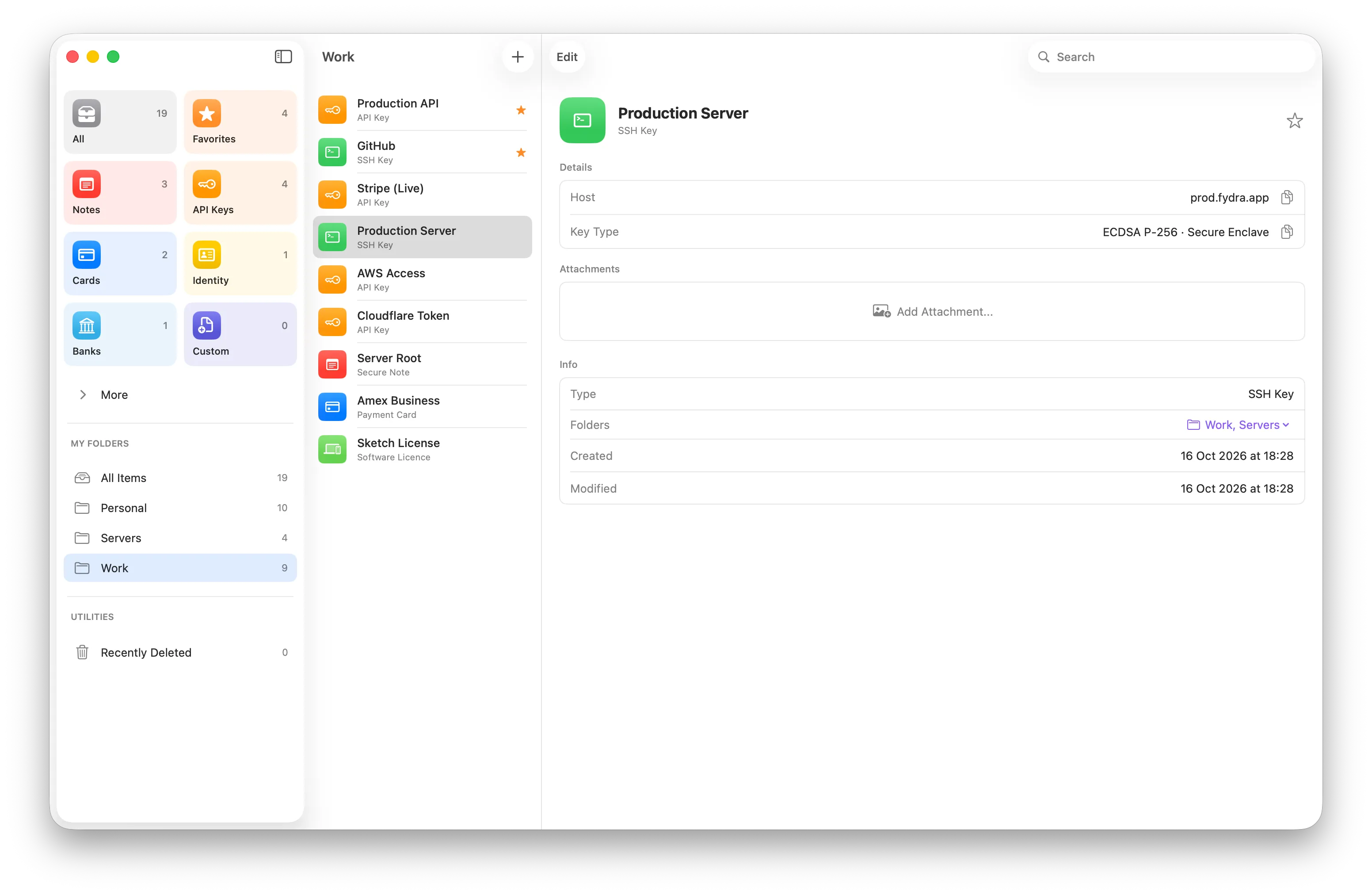
Fydra is free for up to 10 items, and an import that would go past 10 needs Fydra Pro, which unlocks unlimited items as a subscription or with a one-time lifetime purchase.
4. Bring over files
1Password’s attachments and Document items aren’t part of the import. Save the ones you still need from 1Password, then add them to the matching item in Fydra. For passports and ID cards, Scan Passport and Scan ID Card are quicker: Fydra reads the fields from a photo.
For developers: replace 1Password’s SSH agent
For many developers, the SSH agent is what keeps them on 1Password. Fydra for Mac has one too. When Git or SSH needs a signature, the agent asks for Touch ID and returns only the signature. SSH clients never receive your private key, and it’s never written to disk unencrypted.
| 1Password SSH agent | Fydra SSH agent | |
|---|---|---|
| Touch ID approval | Yes | Yes |
| Approval remembered | Per app, until lock | Per app until lock, per session, for one hour, or every time |
| Key types | Ed25519, RSA | Ed25519, RSA |
| Keys handed to SSH clients | Never | Never |
| Platforms | Mac, Windows, Linux | Mac |
| Included in | 1Password subscription | Fydra Pro, agent is a free notarized download |
Move your SSH keys
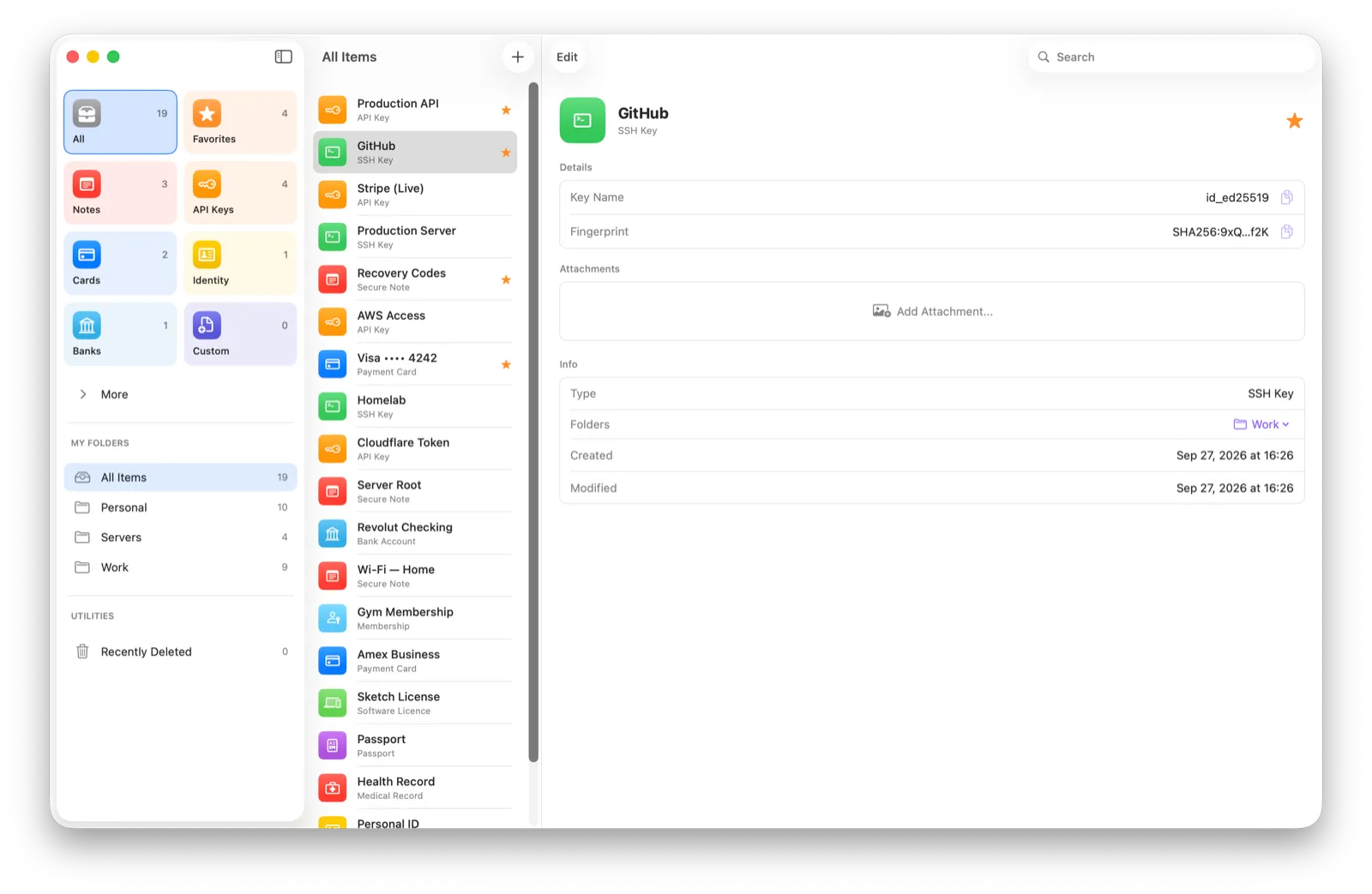
Your SSH keys come over with the 1PUX import, with their names and the folders
you tagged them with. Once the agent is set up (next section), run ssh-add -l
to check: every key you want should be listed, with its fingerprint.
If a key is missing from the list, move it by hand:
-
In 1Password, open the SSH key and choose Export. For an Ed25519 key, pick the OpenSSH format.
-
The agent reads RSA keys in PEM (PKCS#1) format, so convert an RSA key first:
ssh-keygen -p -m PEM -f ~/Downloads/id_rsa -
In Fydra, click +, choose the SSH Key type, then Import Existing Key, and paste the private key.
-
Delete the downloaded file.
Keys with a passphrase work too: Fydra gives you a one-line Terminal command that removes the passphrase from a temporary copy, and from then on the key is protected by your vault and Touch ID instead.
Point SSH at Fydra instead of 1Password
-
Download the Fydra SSH Agent, drag it to Applications, open it and turn on Start at Login from its menu bar icon.
-
Open
~/.ssh/configand remove theIdentityAgentline that 1Password added. It points at 1Password’s socket and wins over everything else. -
If you want every app to use Fydra, including Git clients you open from the Dock, put Fydra’s socket there instead:
Host *
  IdentityAgent "~/Library/Group Containers/group.com.fydra.vault/ssh-agent.sock"
For Terminal alone, you can export it in
~/.zshrcinstead:export SSH_AUTH_SOCK="$HOME/Library/Group Containers/group.com.fydra.vault/ssh-agent.sock" -
Open a new terminal and run
ssh-add -l. Your Fydra keys are listed. -
Run
ssh -T git@github.com. Touch ID asks once, and you’re in.
The SSH agent guide has the full setup, including how approvals work.
Git commit signing
The Fydra agent signs Git commits too, with the same Touch ID prompt. If you sign commits through 1Password, three changes move it over.
-
Stop calling 1Password. Your
~/.gitconfighas this section:[gpg "ssh"] program = "/Applications/1Password.app/Contents/MacOS/op-ssh-sign"Remove it, or run:
git config --global --unset gpg.ssh.programGit then signs with
ssh-keygen, which asks the agent inSSH_AUTH_SOCKfor the signature. -
Export
SSH_AUTH_SOCK.ssh-keygenignoresIdentityAgentin~/.ssh/config, so add theexport SSH_AUTH_SOCK=…line from step 3 to~/.zshrceven if you useIdentityAgentfor SSH. -
Point Git at your public key.
ssh-add -Lprints the public keys the agent holds. Save the one you sign with to a file and tell Git about it:ssh-add -L | grep "ssh-ed25519" | head -n 1 > ~/.ssh/signing_key.pub git config --global user.signingkey ~/.ssh/signing_key.pub git config --global gpg.format ssh git config --global commit.gpgsign trueIf you have several keys, open
~/.ssh/signing_key.puband check that it’s the right one. Copying the public key from 1Password works just as well.
To test it, open a new terminal and make an empty commit in any repository:
git commit --allow-empty -m "Test signing with Fydra"Touch ID asks for approval, and the commit is signed. If you already signed commits with this key, GitHub and GitLab keep showing them as Verified, because the key itself hasn’t changed. For a new key, add it on GitHub under Settings > SSH and GPG keys > New SSH key with the key type Signing Key.
Who should stay with 1Password
Stay with 1Password if:
- You use Windows, Linux or Android regularly. Fydra is Apple only.
- Your family or team shares vaults of documents and notes. Apple Passwords shares logins, but Fydra has no shared vaults.
- You rely on Travel Mode, the
opcommand-line tool, or 1Password’s integrations with developer tools and secret managers. - You’d rather have one app for everything than two.
If none of these apply to you, most of that €43.80 a year pays for things you don’t use.
Summary: replacing 1Password on Mac and iPhone
- Logins, passkeys and codes: Apple Passwords, free.
- Notes, cards, documents, API keys, SSH keys and the SSH agent: Fydra, free for 10 items, €19.99 a year or €59.99 once.
- Migration: a CSV for Apple Passwords, a 1PUX file for Fydra, and passkeys from 1Password for iOS.
New to Fydra? Introducing Fydra explains the idea behind it, and the support page answers the common questions.
Frequently asked questions
Can Apple Passwords replace 1Password?
For logins, passkeys and verification codes on Apple devices, yes. Apple Passwords is free, built in and fills passwords everywhere on iPhone, iPad and Mac. It has no standalone secure notes, payment cards, identity documents, file attachments or SSH keys, so you need a second app for those, such as Fydra.
How much does 1Password cost after the 2026 price increase?
Since March 27, 2026, 1Password Individual costs $3.99 a month billed yearly ($47.88 a year, €43.80 in the eurozone), up from $2.99. Families costs $5.99 a month ($71.88 a year, €69), up from $4.99. The new price applies at your first renewal on or after that date.
Can I import my 1Password vault into Apple Passwords?
Only your logins. Export a CSV from 1Password and choose File > Import Passwords from File in the Passwords app on Mac. The CSV holds Login and Password items only. Passkeys move separately, from 1Password for iOS to Apple Passwords with the Credential Exchange export on iOS 26 or later.
Does Fydra import from 1Password?
Yes. Fydra reads 1Password's 1PUX export and brings over secure notes, payment cards, bank accounts, identities, passports, driver's licences, software licences, memberships, medical records, API credentials and SSH keys, with your tags as folders. Logins are skipped on purpose, because they belong in Apple Passwords. File attachments are not imported.
Can I use SSH keys with Touch ID without 1Password?
Yes. Fydra for Mac has its own SSH agent. Git and SSH ask it for a signature, you approve with Touch ID, and the private key never leaves the vault. It supports Ed25519 and RSA keys and is part of Fydra Pro.
Does Fydra work on Windows or Android?
No. Fydra is a native app for iPhone, iPad, Mac and Apple Watch only. If you need your vault on Windows, Linux or Android, 1Password is still the better choice.